  1. Tags/

Visual Studio

HowTo: Have Visual Studio always run as administrator on Windows 8

·1 min

In my previous post about being unable to access the iis metabase I wanted my Visual Studio to ‘Run as Administrator’ on my Windows 8 machine. I only managed to get this working for the pinned taskbar icon and not for items in the jumplist or for items you open by double clicking them. The solution to check the box ‘Run as Administrator’ on the compatibility tab of the file properties for devenv.exe was not a solution, because there is no more Compatibility tab in Windows 8 :).
Unable to access the IIS metabase

·1 min

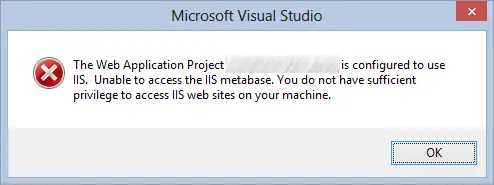
I opened a solution in Visual Studio 2012 on my laptop running Windows 8, when I was presented with the error “The Web Application Project SomeWebProject is configured to use IIS.  Unable to access the IIS metabase. You do not have sufficient privilege to access IIS web sites on your machine.” The user I was logged in with was a local administrator and was able to open up and use IIS Manager, but still I was presented with this error. The solution to this is simple: start your Visual Studio with ‘Run as Administrator’. You can do this by right clicking the shortcut and selecting ‘Run as Administrator’.

Error installing the Windows Azure AppFabric Tools for Visual Studio (CTP)

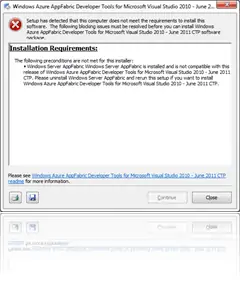
When installing the Windows Azure AppFabric Tools for Visual Studio (found here), you might get the error message shown at the top, stating that Windows Server AppFabric is installed and that it is not compatible with this release of Windows Azure AppFabric Developer Tools for Microsoft Visual Studio 2010 – June 2011 CTP. It asks to uninstall Windows Server AppFabric and rerun this setup if you want to install Windows Azure AppFabric Developer Tools for Microsoft Visual Studio 2010 – June 2011 CTP.

Visual Studio: Zero-impact Projects & Cutting/copying empty lines

Yesterday I remembered two Visual Studio options Sara Ford told about in a presentation of her I attended a while back. Changing them made me happy… 🙂

Zero-impact projects #

When I have to test something real quick, I tend to create a new project in Visual Studio and scribble some code to test whatever I want to test at that point. This causes my project directory to be filled with projects named WindowsFormsApplication14 or something like that. To make this stop, go to Tools - Options - Projects and Solutions - General. Uncheck the option ‘Save new projects when created’. This way those newly made (and shortly used) projects aren’t saved untill you explicitly tell Visual Studio to do so. No more WindowsFormsApplication63 for you! Unless you want to name it that way intentionally, of course…

Visual Studio 2010: Close all documents

·2 mins

Sometimes it’s the little things that make you love a new product just a bit more.

I tend to close stuff I don’t use anymore fairly quickly. Sometimes I even close an Explorer window or an application right after I used it, only to find I need it again in a few moments… We all have our quirks, right 😉

Visual Studio 2010 and the web.config

While working with Visual Studio 2010, a new feature caught my eye that isn’t communicated (strongly) in the “What’s new” lists you can find online. As part of the Visual Studio 2010 supports multiple web.config files! Now we can create a separate web.config file for each configuration we have for our application. If you add a configuration through the configuration manager, you have the possibility to add a web.config file for the new configuration, too.