  1. Tags/

Dotnet

So many new (.NET) goodies!

The people over at Microsoft have been working hard and have delivered a lot of stuff. That makes for a nice start after the holidays! So there’s a lot of cool stuff available to play with. I created some simple and easy to remember links for all of these goodies. Feel free to use and distribute these 🙂
.NET Core: not your daddy’s dotnet

·1 min

We held a 2.5 hour presentation about .NET Core at the Betabit office in Rotterdam on March 29th. Where ‘we’ means my colleague Oscar van Tol and myself. We ended up having way too much content for the evening. We decided to host a hands-on workshop for those interested. At that workshop we will not only show .NET Core, but also enable you to have a go at it yourself. The location will most probably be the Betabit office in Utrecht because it’s located more central. Stay tuned for more info on the details of the workshop.

Running Visual Studio as an administrator causes ‘Save changes to devenv.sln’ when double clicking solutions

·1 min

After making sure my Visual Studio always ran as an administrator by following my own post HowTo: Have Visual Studio always run as administrator on Windows 8, I got a message if I wanted to save changes to devenv.sln each and every time I double clicked a Solution. Since the problem kept occuring after installing Visual Studio 2015 CTP6, I wanted to solve it. So here we go!

Error: The Path ‘path’ is already mapped in workspace ‘workspace’

Just a quick little post today: I got the error “The Path ‘path’ is already mapped in workspace ‘workspace’” when I connected to a new Team Foundation Server and tried to map my workspace today. I had connected to a Team Foundation Services project a while back to get some shared code, but I already removed the workspace and the server binding. Even though Visual Studio didn’t see any other bindings, mapping my workspace to the same folder the previous TFS binding was mapped to served me this error.

Debugging JavaScript with Visual Studio in an ASP.NET MVC 4 application

When debugging JavaScript in an ASP.NET MVC (4) application, it is not always enough to uncheck the ‘Disable script debugging’ checkboxes under ‘Tools’ – ‘Internet Options’ – ‘Advanced’ – ‘Browsing’. JavaScript inside a Razor view (a cshtml file) cannot be debugged from Visual Studio. To debug your JavaScript, move it to a separate .js file and link to that file from your Razor view. This way, breakpoints set in the JavaScript will be hit and you can debug from Visual Studio.

How To: Call a generic method with a runtime type

·2 mins

Problem:

Developing a generic class that maps datasets, datatables and datarows from a legacy system to my domain model, I ran into an issue. I wanted to call a generic method with a runtime type. Lets say the method looked like this: public string DoSomething<T>(string param). Because I use reflection to iterate properties on a type, the type of the properties was dynamic and only known at runtime. I wanted to do something like this:

Unable to access the IIS metabase

·1 min

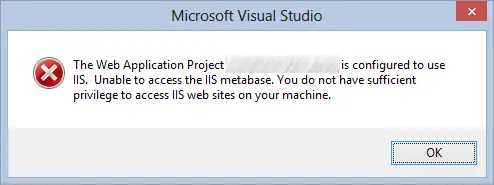
I opened a solution in Visual Studio 2012 on my laptop running Windows 8, when I was presented with the error “The Web Application Project SomeWebProject is configured to use IIS.  Unable to access the IIS metabase. You do not have sufficient privilege to access IIS web sites on your machine.” The user I was logged in with was a local administrator and was able to open up and use IIS Manager, but still I was presented with this error. The solution to this is simple: start your Visual Studio with ‘Run as Administrator’. You can do this by right clicking the shortcut and selecting ‘Run as Administrator’.